
Apple M4 Mac Mini Guide: Desk Setup, Docks & Dual Monitors
Workstation power in a 5-inch box: how to configure dual displays, docks, and external SSDs on the M4 Mac mini.
Topic guide
Apple's redesigned M4 Mac mini has rapidly emerged as the benchmark compact desktop for modern knowledge workers, software developers, and creative professionals. Packing staggering CPU and GPU efficiency into a tiny 5x5 inch aluminum chassis, it delivers workstation-grade capability at an accessible price point. However, extracting maximum productivity from a base configuration demands strategic hardware decisions around multi-display piping, port expansion, and high-speed external storage.
Mastering Multi-Display Workflows: Dual 4K Without Compromise
- Bandwidth Distribution Across Ports: The standard M4 supports up to three displays (two up to 6K at 60Hz over Thunderbolt, plus one up to 4K at 60Hz over HDMI). To eliminate display flicker and maintain 60Hz/120Hz refresh rates, use dedicated USB-C to DisplayPort 1.4 cables rather than daisy-chaining through unpowered splitters.
- Thunderbolt 4 Docking and Form-Fitting Stands: Because the redesigned chassis relocated the power button to the bottom and sports front-facing USB-C ports, pairing the machine with a dedicated docking stand (such as Satechi or Acasis) provides front SD card access, extra USB-A ports, and vertical airflow clearance.
- The High-Speed External NVMe Storage Strategy: Rather than paying Apple's steep tier pricing for internal NAND upgrades, base 256GB or 512GB models can be paired with an external 40Gbps Thunderbolt enclosure housing a 2TB or 4TB NVMe SSD, achieving real-world transfer speeds exceeding 3,000 MB/s for heavy app caches and project files.
Ergonomics and Cable Management for Clean Desks
Mounting the Mac mini on an under-desk bracket or monitor arm backplate eliminates desktop clutter, allowing dual monitors, mechanical keyboards, and studio speakers to dominate your clean, focused workspace.
🎬 Multi-Display Setup: Dual & Triple Monitor Guides
How to Connect Dual Monitors to Mac Mini M4: Step-by-Step Display Tutorial
Clear, practical cable routing walkthrough detailing how to connect HDMI and USB-C displays simultaneously without handshake lag.
Expand reference video (YouTube)
Configuring 2 or 3 Screens on the M4 Mac Mini: Display Settings & Resolution
Demonstrates macOS display arrangement, HiDPI scaling, and primary monitor selection for ergonomic multitasking.
Expand reference video (YouTube)
Quick Guide: Connecting Two Monitors to Mac Mini #Shorts
A concise 57-second overview illustrating port layout and necessary adapters for clean dual-screen setups.
Expand reference video (YouTube)
🎬 Docking Hubs, External SSDs & Desk Accessories
Tested: 6 Best Docks and Hub Stands for the Redesigned M4 Mac Mini
Mark Ellis compares thermal dissipation, port bandwidth, and SSD enclosure speeds across six popular commercial docks.
Expand reference video (YouTube)
Setting Up Fast External NVMe SSD Storage on the 256GB M4 Mac Mini
Comprehensive financial and technical breakdown proving why a 40Gbps external drive offers the highest performance-per-dollar.
Expand reference video (YouTube)
Satechi Stand & Hub for M4 Mac Mini: NVMe SSD Installation Guide #Shorts
Official installation short demonstrating toolless NVMe mounting and thermal pad placement inside the matching aluminum base.
Expand reference video (YouTube)
TuTu is still digging…
Utilizing 40Gbps Thunderbolt NVMe enclosures delivers internal-grade storage speeds without paying Apple's prohibitive factory upgrade fees.
Keep exploring
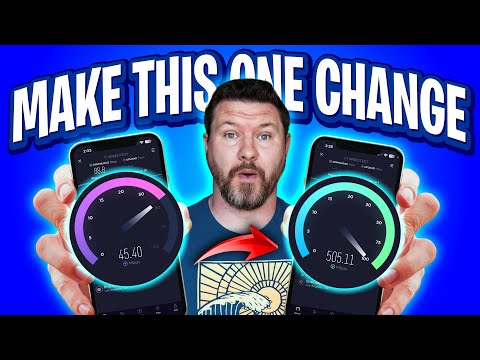
Mesh Wi-Fi Backhaul: Ethernet Ports and Slow Links
Wired your mesh Wi-Fi nodes with Ethernet but speeds are stuck around 90–100 Mbps? Join TuTu to trace port speeds, 8-wire Cat5e/Cat6 pinouts, switch loops, and negotiated link rates before buying another node.

US Flights With Power Banks: Packing and Airline Checks
Flying in the US with portable chargers or spare camera batteries? Join TuTu to separate FAA PackSafe watt-hour limits (100Wh vs. 160Wh), gate-checked bag traps, and airline-specific cabin storage rules.

iPhone Duo Display Cracking: Teardown, Dust & Warranty
Why are launch-week iPhone Duo inner displays cracking along the fold? Join TuTu to break down JerryRigEverything's durability test, iFixit's CT-scan teardown hotspot, sand ingress, case issues, and Apple's free replacement policy.

EPUB Library Loans: Formats, DRM and Accessibility
Borrowing digital library books often means running into mysterious .acsm files, DRM authorizations, and e-reader sync headaches. TuTu breaks down how EPUB loans work, from Adobe Digital Editions to Libby accessibility tools.
That’s this batch. More to explore another time.
This topic is AI-assisted and human-edited, and may contain errors or bias. If you own a featured video and do not want it displayed, please contact us.